
Chrome 144 Introduces the <geolocation> Element: Declarative Location Access for Modern Web Apps
Learn how Chrome 144's new <geolocation> HTML element simplifies location access, improves privacy, and replaces imperative navigator.geolocation calls with a declarative, user-driven approach.

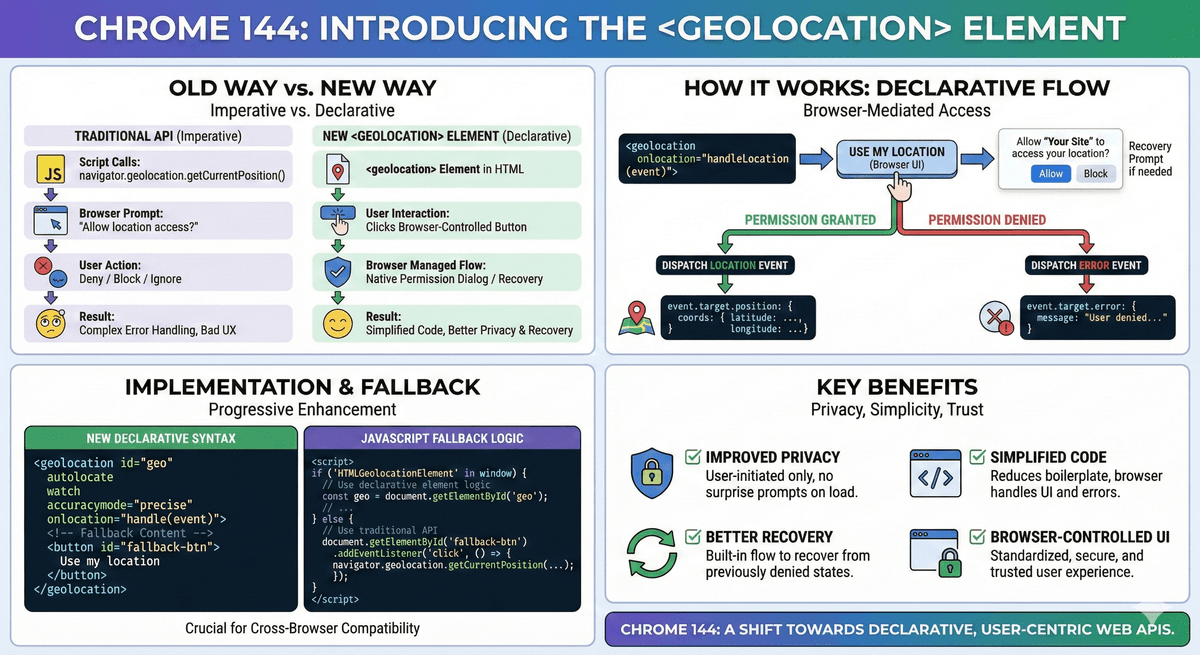
Chrome 144 Introduces the <geolocation> Element: Declarative Location Access for Modern Web Apps
Chrome 144 introduces a new declarative <geolocation> HTML element that changes how web applications request location access. Instead of calling navigator.geolocation.getCurrentPosition() imperatively from JavaScript, developers can now place a browser-controlled element directly in the DOM.
This post is for frontend engineers, platform engineers, and privacy-conscious developers who want to understand how this new model works and whether they should migrate.
By the end of this article, you'll understand:
- What the
<geolocation>element is - How it works internally
- How it compares to the traditional Geolocation API
- How to implement it with proper fallback support
Why Chrome Introduced <geolocation>
Historically, location access was triggered via JavaScript:
navigator.geolocation.getCurrentPosition(success, error);
This caused several problems:
- Permission prompts appearing on page load
- Users denying requests due to poor timing
- Quiet permission blocking by browsers
- Complicated permission state handling in code
The <geolocation> element solves this by:
- Requiring explicit user interaction
- Providing a visible, browser-controlled UI
- Reducing boilerplate permission code
- Improving recovery from previously denied states
Chrome origin trials showed measurable improvements in successful permission grants and recovery rates.
What Is the <geolocation> Element?
The <geolocation> element is part of the WICG "Permission Elements" proposal. It acts as a declarative wrapper around the existing Geolocation API.
It renders as a browser-controlled button such as:
When clicked:
- The browser shows the location permission dialog.
- If granted, it dispatches a
locationevent. - The element exposes either:
position(success)error(failure)
Attributes Explained
autolocate
Automatically attempts to retrieve location when inserted into the DOM — only if permission was already granted.
<geolocation autolocate></geolocation>
It does not trigger surprise permission prompts.
watch
Continuously tracks position updates, similar to watchPosition().
<geolocation watch></geolocation>
Without watch, it behaves like getCurrentPosition().
accuracymode
Controls precision level.
<geolocation accuracymode="precise"></geolocation>
Possible values:
"approximate"(default)"precise"
When set to "precise", the browser may:
- Change icon (crosshair instead of pin)
- Update label text
- Request higher accuracy internally
Basic Implementation
Minimal example:
<geolocation onlocation="handleLocation(event)"></geolocation>

<script>
function handleLocation(event) {
  if (event.target.position) {
    const { latitude, longitude } = event.target.position.coords;
    console.log("Location:", latitude, longitude);
  } else if (event.target.error) {
    console.error("Error:", event.target.error.message);
  }
}
</script>
No permission logic required.
The browser handles:
- Permission prompts
- Recovery dialogs
- Error states
Adding Progressive Enhancement (Fallback)
You must support non-Chrome browsers.
<geolocation id="geo">
  <button id="fallback-btn">
    Use my location
  </button>
</geolocation>

<script>
if ('HTMLGeolocationElement' in window) {
  const geo = document.getElementById('geo');
  geo.addEventListener('location', () => {
    if (geo.position) {
      console.log(geo.position.coords);
    }
  });
} else {
  document.getElementById('fallback-btn')
    .addEventListener('click', () => {
      navigator.geolocation.getCurrentPosition((pos) => {
        console.log(pos.coords);
      });
    });
}
</script>
This ensures compatibility across browsers.
Browser UI Behavior
When clicked, Chrome displays the standard location permission dialog:
If previously denied, Chrome shows a recovery prompt:
This makes permission recovery significantly easier compared to manual browser settings navigation.
Styling Restrictions (Security Guardrails)
To prevent abuse or clickjacking, Chrome enforces:
- Minimum size
- Opacity must remain
1 - No negative margins
- No deceptive transforms
- Enforced contrast ratio
You can style it, but you cannot make it invisible or misleading.
Example:
geolocation {
  border-radius: 8px;
  padding: 12px;
}
But you cannot:
- Hide it
- Make it 1px wide
- Overlay fake UI elements
<geolocation> vs navigator.geolocation
| Feature | Traditional API | <geolocation> |
|---|---|---|
| Permission Trigger | Script-based | User-click only |
| Boilerplate Code | High | Minimal |
| Recovery Flow | Manual | Built-in |
| Styling Control | Full | Guard-railed |
| Privacy Model | Developer-controlled | Browser-mediated |
When Should You Use It?
Use <geolocation> if:
- You need a simple "Use my location" feature
- You want better permission recovery
- You want reduced code complexity
- You care about user trust and privacy
Stick to the traditional API if:
- You need fine-grained timing control
- You require silent background tracking
- You are building real-time geo-heavy apps (ride-sharing, logistics dashboards)
Production Checklist
- Feature-detect
HTMLGeolocationElement - Provide a JS fallback
- Avoid using
autolocateunnecessarily - Test denied → recovery flows
- Validate UX on mobile devices
Conclusion
The <geolocation> element is a significant shift toward declarative permission handling on the web. It reduces developer complexity while improving privacy, trust, and user experience.
For simple location-based features, it should become the default pattern in Chrome-supported environments.
However, since it's currently Chrome-specific and incubating, production systems must still include fallback support.
If you're building modern web applications and care about privacy-first UX, this is worth adopting early — but do it responsibly with progressive enhancement.
Tags
Share this post
Backend engineer at Initializ.ai — building scalable systems with Go, Elixir, and Kubernetes. Writing about distributed systems, AWS, and the bugs that cost me hours.