How Files Are Stored, Deleted, and Copied Inside Your Computer
Understand how files are actually stored on disk, why deletion is instant, and why copying takes time. A beginner-friendly deep dive into file systems and storage architecture.

How Files Are Stored, Deleted, and Copied Inside Your Computer
Have you ever noticed something interesting?
- Deleting a file happens instantly.
- Copying a file takes time.
- Moving a file is sometimes instant and sometimes slow.
Why does this happen?
If you're new to operating systems and storage internals, this article explains everything in simple terms using real-world analogies, while also giving you a deeper technical understanding of what’s happening behind the scenes.
By the end, you’ll understand:
- How files are stored on disk
- Why delete is fast
- Why copy takes time
- Whether files are really deleted
- How HDD and SSD behave differently
How Files Are Actually Stored on Disk
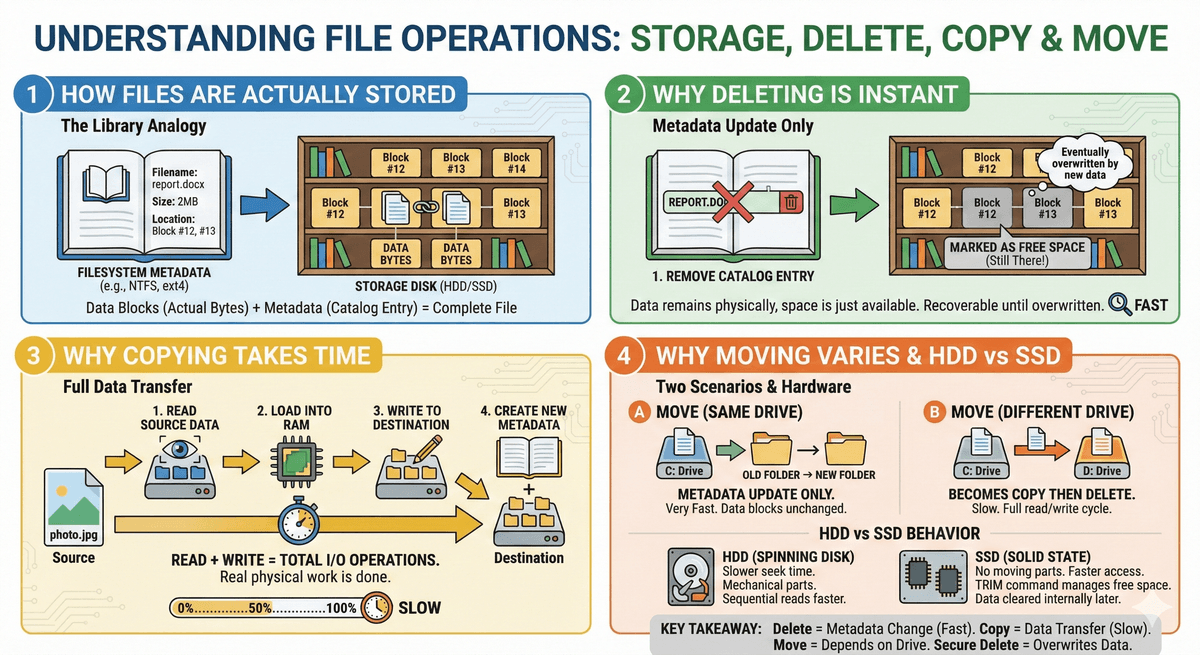
Your computer does not store files the way you see them in folders.
Internally, storage is divided into:
- Data Blocks (or clusters) – These contain the actual bytes of your file.
- Metadata – Information about the file:
- File name
- File size
- Location of data blocks
- Permissions
- Created/modified timestamps
A file system (like NTFS, ext4, FAT32) manages this structure.
Example File Systems
- Windows → NTFS
- Linux → ext4
- USB drives → FAT32
Each filesystem maintains:
- A directory entry (file name)
- A metadata record (inode in Linux, MFT entry in NTFS)
- Pointers to the actual disk blocks
You can think of it like a database that tracks where your file data lives on disk.
Real-Life Analogy: A Library
Imagine this:
- The library catalog = filesystem metadata
- The books on shelves = actual file data
- The shelf location number = pointer to disk blocks
When you open a file:
- The system checks the catalog.
- It finds the shelf location.
- It retrieves the book (data blocks).
Now let’s see what happens during delete and copy.
Why Deleting a File Is Instant
When you delete a file, the system usually does not erase the data immediately.
Instead, it:
- Removes the file name from the directory.
- Marks its data blocks as “free”.
- Updates metadata records.
That’s it.
The actual bytes are still physically on disk — but the system marks that space as available for reuse.
Since this is mainly a metadata update, it happens very fast.
Important Insight
Deleting is like removing the book’s entry from the library catalog.
The book is still on the shelf — but nobody knows it exists anymore.
This is why:
- File recovery tools can restore deleted files.
- Secure deletion requires special tools.
Do Files Actually Get Deleted?
Short answer: Not immediately.
They are:
- Marked as free space
- Eventually overwritten by new data
On SSDs:
- The operating system sends a TRIM command
- The SSD later clears unused blocks internally
Deletion is logical first, physical later.
Why Copying a File Takes Time
Copying is completely different.
When copying:
- The system reads every block from the source file.
- Loads it into memory (RAM).
- Writes those blocks to a new location.
- Creates new metadata for the copied file.
This process depends on:
- Disk speed
- File size
- HDD vs SSD
- CPU and memory performance
Since the entire file’s data must be read and written, copying takes time.
Example
Copying a 10GB file means:
- Reading 10GB
- Writing 10GB
That’s 20GB of total I/O operations.
That’s real physical work being done.
Why Moving Files Is Sometimes Instant
This depends on where you move the file.
Case 1: Same Drive (Same Filesystem)
Move = metadata update only.
The system just:
- Updates the directory entry
- Keeps data blocks unchanged
This is very fast.
Case 2: Different Drive
Move becomes:
- Copy the file
- Delete the original
So it takes time.
That’s why:
- Moving inside C: is instant
- Moving from C: to D: takes time
HDD vs SSD Behavior
HDD (Hard Disk Drive)
- Mechanical spinning disk
- Moving read/write head
- Slower seek time
- Sequential reads are faster
Copying large files can be slower because of mechanical movement.
SSD (Solid State Drive)
- No moving parts
- Much faster random access
- Uses flash memory cells
- Uses TRIM and garbage collection
Deletion marks blocks unused first. The physical erase happens later internally.
What Happens in the OS Layer
At the system-call level (Linux example):
delete→unlink()copy→ multipleread()andwrite()callsmove (same filesystem)→rename()
Example:
strace rm file.txt
You'll see something like:
unlink("file.txt")
That's simply removing the reference to the file.
Copying involves many read() and write() operations, which take time.
Why Deleting Many Files Can Be Slow
Deleting one file is fast.
Deleting thousands of small files can take time because:
- Each file has metadata.
- Directory entries must be updated.
- Journaling systems must commit changes.
Even metadata operations add up when repeated many times.
Secure Deletion
Normal delete:
- Marks space as free
Secure delete:
- Overwrites data blocks
- Ensures recovery is impossible
On SSDs:
- Use drive-level secure erase
- Or enable full-disk encryption
Key Takeaways
- Delete is fast because it removes metadata, not actual data.
- Copy is slow because it transfers real bytes.
- Move is fast only within the same filesystem.
- Deleted files remain until overwritten.
- SSDs and HDDs behave differently.
- Secure deletion requires special handling.
What to explore next
File operations look simple from the UI, but under the surface the OS is managing metadata, block allocation, caching, journaling, and hardware coordination.
If this interested you, here are some rabbit holes worth going down:
straceon Linux — runstrace rm file.txtorstrace cp src dstto see the actual system calls involved- Filesystem internals — look into how ext4 journaling works, or how ZFS and Btrfs use copy-on-write to make snapshots nearly free
- Flash Translation Layer — how SSDs remap logical blocks to physical NAND pages, and why TRIM exists
- Data recovery tools — tools like
testdiskandphotorecexploit the fact that "deleted" data is still on disk
The next time a file deletes instantly, you'll know — it wasn't magic. It was just a metadata update.
Share this post
Backend engineer at Initializ.ai — building scalable systems with Go, Elixir, and Kubernetes. Writing about distributed systems, AWS, and the bugs that cost me hours.